NACDA Portal User Guide
Introduction
The NACDA Portal offers a searchable database of metadata from longitudinal collections focused on aging populations. This document provides an overview of the different pages within the NACDA portal and how to use them. Please note there may be slight differences between the look of the live portal site and the references in this guide due to new versioning, reformatting, and newly added content. We will update this guide periodically.
Log-in
Go to the NACDA Portal. Users must start by creating a free account from the log in/registration page. To do this, simply click the “Register as a new user” link on the login page. Enter the required information, click the register button, and then you will be brought directly to the NACDA Portal homepage. A confirmation email will be sent to the email address provided. If you have previously registered, you can log in using the email address and password associated with your account.
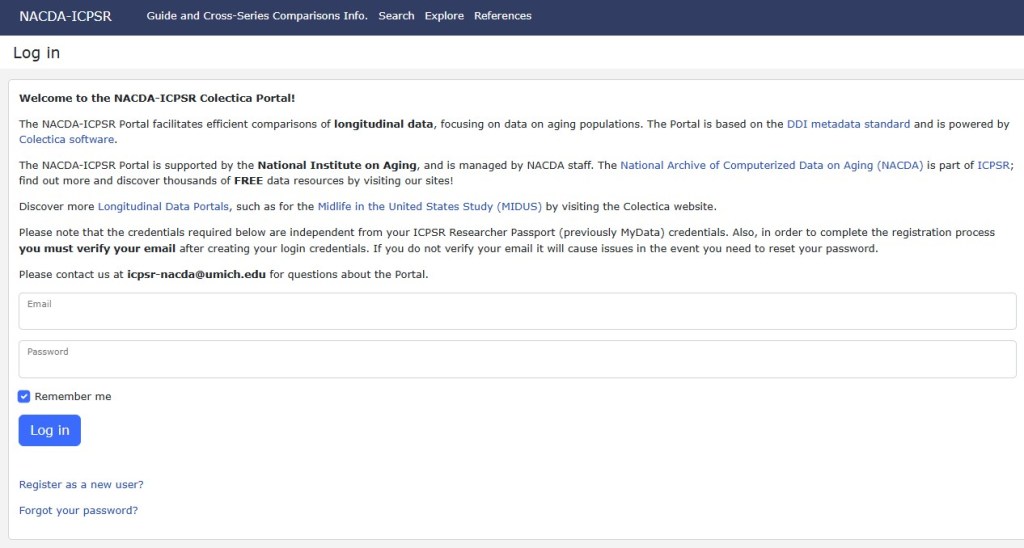
NACDA Portal Homepage
After logging in, by default you will be directed to the NACDA Portal Homepage. The homepage includes details about the portal functionality and a summary of the longitudinal data series and metadata we host. You can navigate back to the homepage anytime by selecting the “NACDA-ICPSR” hyperlink in the upper left corner of the site page.
The NACDA Portal offers three types of longitudinal series comparisons which can be accessed from the Explore tab:
- Cross-wave – Presents comparable variables across waves, or rounds in a single longitudinal series
- Cross-series – Presents comparable variables across two different longitudinal series
- Multi-series – Presents comparable variables across several longitudinal series
Explore Page
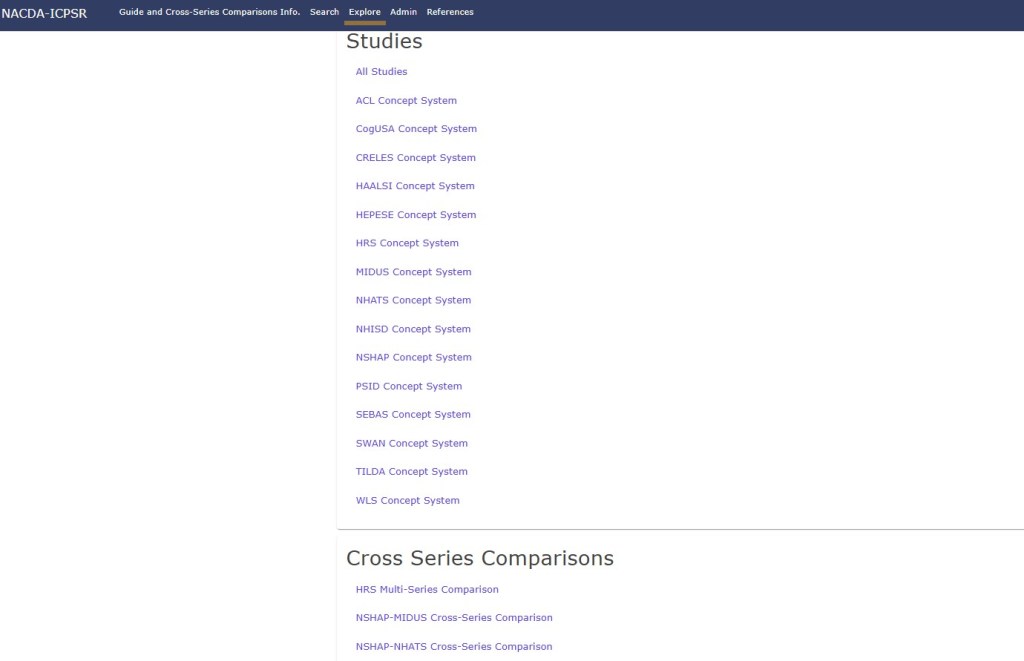
After logging in, you can navigate to the Explore page by clicking “Explore” in the top menu. This page allows you to choose series or cross-series comparisons.
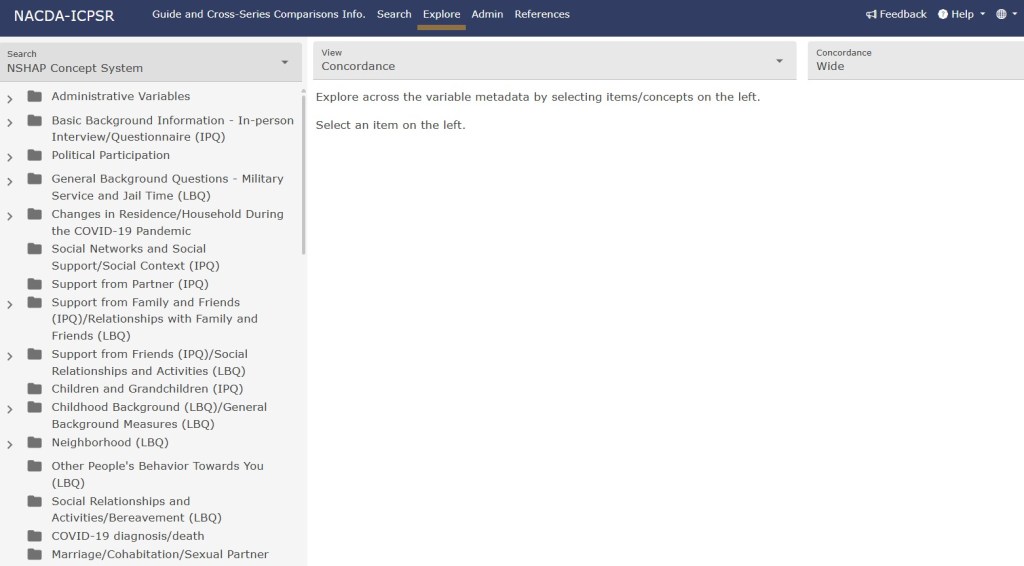
Each comparison/concept system organizes comparable variables in topical groups, which are listed on the side bar showing on the left-hand side of the screen. The example image below reflects the NSHAP Concept System/longitudinal series comparison.
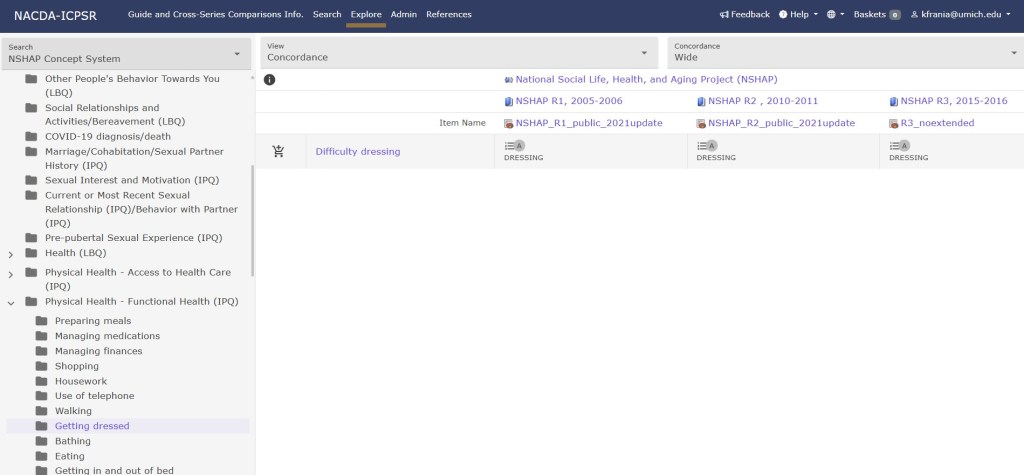
Selecting a group (or subgroup) will open the concordance. The left most column in the concordance table contains what is called a conceptual variable (in the example, “Difficulty dressing”) that links comparable variables across rounds (or across series, where applicable). To the left of each question there is a “+” cart symbol; clicking the “+” cart symbol will add the associated variables to your basket (see Basket section for more information). After clicking the “+” cart symbol it will change to a symbol of a cart with a slash through it. Clicking the slashed cart symbol will remove the item from your basket. The top rows represent the round and series in which the variables appear.
If you click on a conceptual variable link or variable link in the concordance in the explore page, a new tab will open with the variable name and label, data file in which the variable appears, possible values and value labels, question text, and concordance information. Clicking the Code Comparison button (A) will expand the view to include variable values and value labels for each round in which the variable appears.
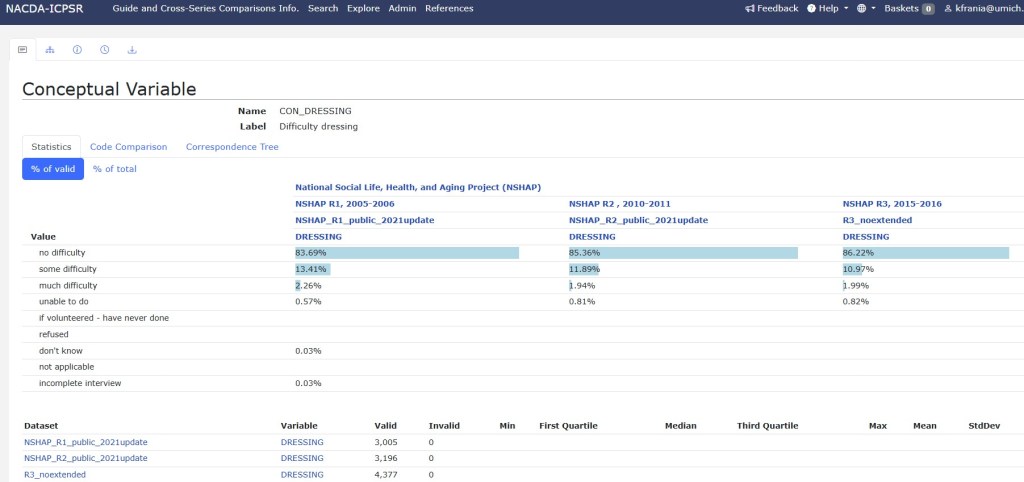
Selecting a single variable from the conceptual variable page (in the example below we selected DRESSING from NSHAP Round 1) will take you to another page which highlights that specific variable’s metadata, and data, where applicable. Scroll down on the page to view even more metadata details.
![Variable Description (DRESSING example) pages display a data summary for each variable from a single collection timepoint, and includes the survey question from which the variable was created. For the DRESSING variable, the question reads “ Please look at the answer categories on the hand card and tell me how much difficulty you have with each activity. Exclude any difficulties that you expect to last less than three months. Dressing, including putting on shoes and socks? [HAND CARD AA]](https://wpvip.icpsr.umich.edu/nacda/wp-content/uploads/sites/18/2025/09/dressing-round1-variable.jpg?w=1024)
Search Page
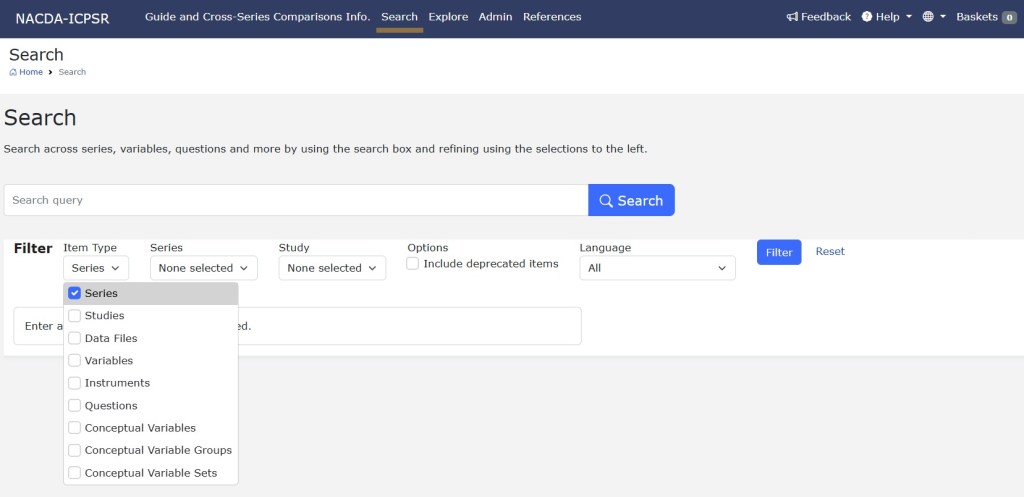
The variables, questions, and data files found using the Explore page can also be accessed through the portal’s search function. The search results can be sorted in a variety of ways using the “Sort by” (B) drop down menu. You can also filter results based on item type, series, and study by selecting options in the Filter section. If you do not filter the results, the search will return all matching item types.
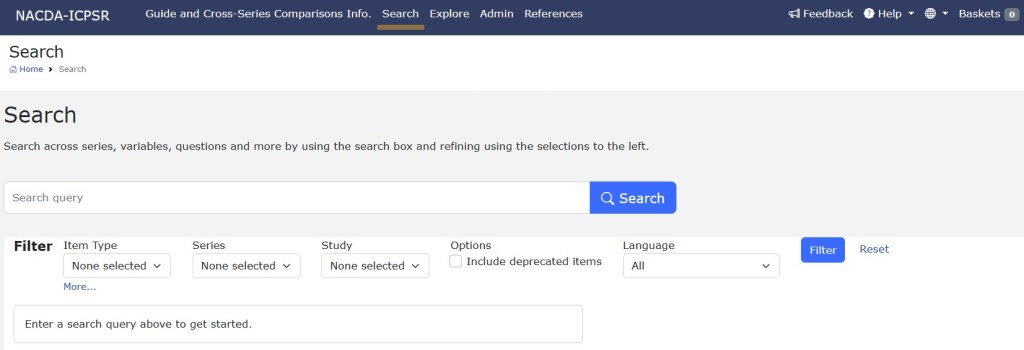
You can also filter results based on item type, series, and study by selecting options in the Filter section. If you do not filter the results, the search will return all matching item types.
Basket Page
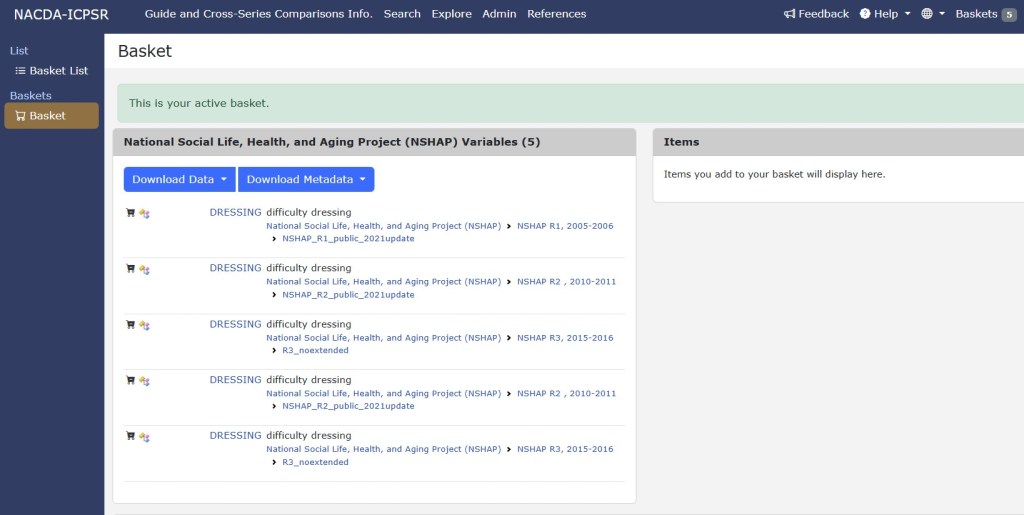
The basket lets you save variables, questions, or other items that interest you. The basket page displays items that you have added to your basket while using the Explore page. Clicking on the basket tab in the top right of the screen will bring you to your basket list. Clicking on a basket name in the list will allow you to view the contents of your basket, edit the name and other attributes of your basket, delete your basket, and download the contents of your basket. Data are available for download (CSV, SPSS formats) for some longitudinal series, while others only allow variable metadata downloads (PDF, CSV, Excel, or Data Documentation Initiative (DDI) 3.2 XML formats).
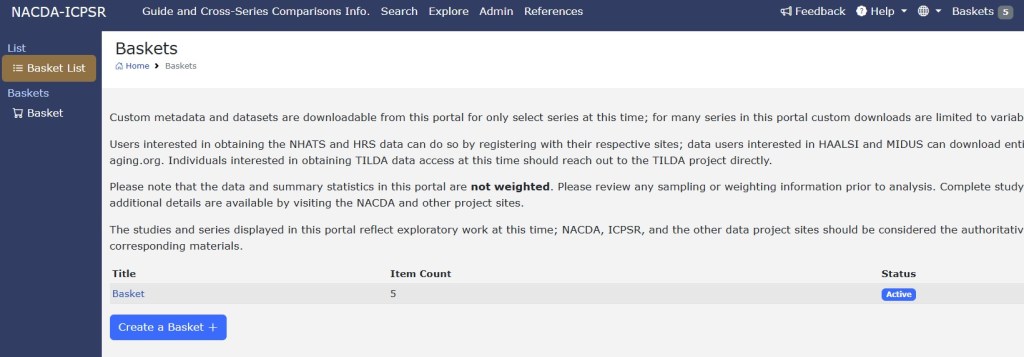
You can create multiple baskets to organize your items. After creating a new basket, it will become your “Active” basket, meaning it will be the basket variables are added to when using the explore tab. If you want to change your active basket, select the basket name hyperlink you want to activate on the left-hand side of the screen, then when that basket page loads, scroll down and select “Activate.”
Help
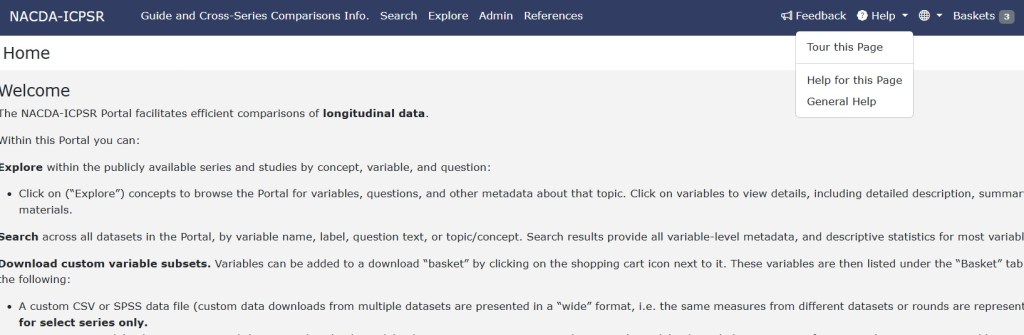
The NACDA Portal was created using Colectica and DDI-Lifecycle. Use the Help button at the top right of the web page to reach out to us with concerns or feedback. The Help button will give you three options: the “Tour this Page” option highlights specific sections of the page and provides pop-up explanations; clicking “Help for this Page” will open the Colectica manual in a web browser and bring you to the section relevant to your current page; finally, the “General Help” option will open the Colectica manual at the beginning.
Please note that since Colectica is a customized product, not all features mentioned in the tour or online manual are applicable to the NACDA Portal. For example, while the tour and manual mention summary statistics, that feature is not applicable for all series hosted in the NACDA Portal.
Language selection
Feedback and More Resources
- Feedback or questions can be sent using our User Support Request Form.
- The NACDA Portal is made possible with DDI and Colectica. Review Colectica’s documentation for more guidance.
- Check the NACDA YouTube playlist for recorded presentations about our data, website, and portal.
Visit nacda-aging.org to download whole datasets and study related documentation, and review study related publications for more than 1600 data collections related to aging populations and the lifecycle.