How to Access Data
The Child and Family Data Archive (CFData) hosts a range of data with varying levels of sensitive information. Data with little to no risk of identifying a participant are categorized as Public Use data. Data with risk of indirect identification of a participant (e.g., small sample size, protected/vulnerable populations, requirements of funding agency/data producer, etc.) are categorized as Restricted Use data and require an application process to access. We restrict data to maintain confidentiality of participants while preserving the viability of the data for research purposes. There are different levels of restriction.
If you have additional questions, please email us at [email protected].
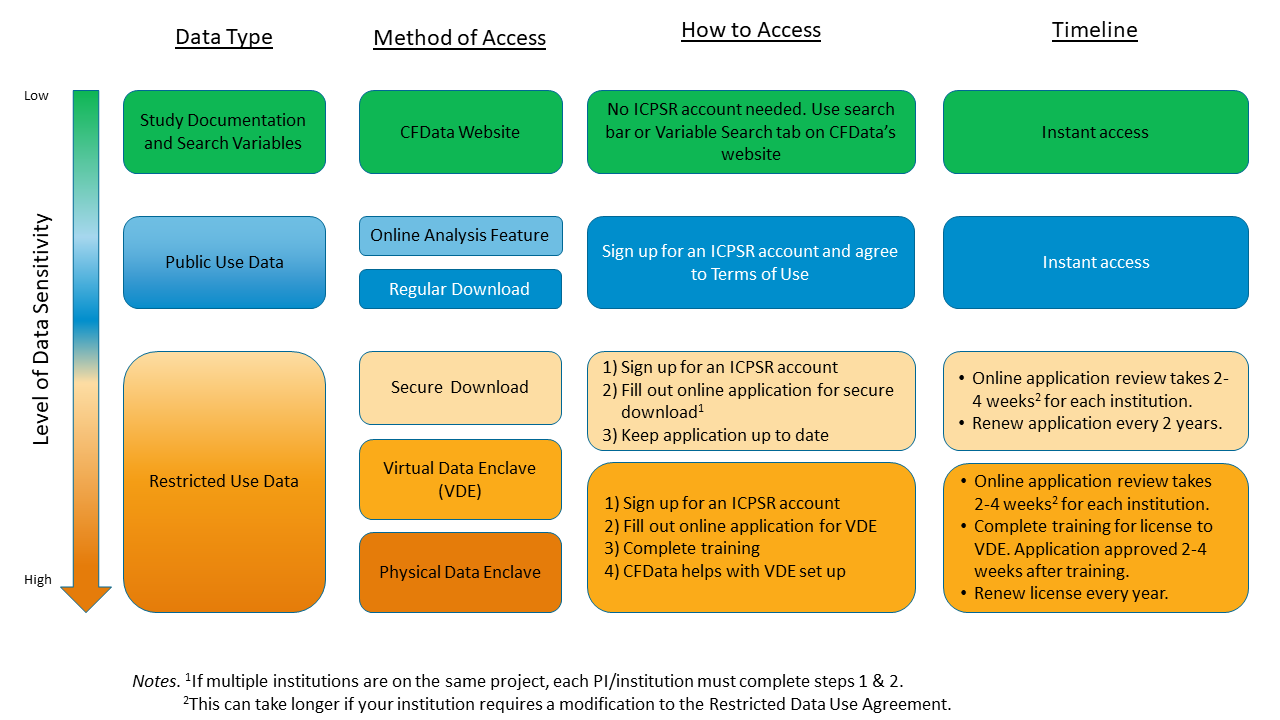
There are several ways to explore the data on the Child and Family Data Archive (CFData).
Review Study Documentation and Resources
Search for studies and accompanying documentation using the search bar located on CFData’s website homepage or at the top of every webpage.
You will be able to view or download all study-related documentation for both Public Use and Restricted Use data.
Examples of informative study-related documents and resources:
- Codebooks*
- User Guides
- Surveys and Questionnaires
- Intro Webinars
- Data-related Publications
* Some studies have more than one codebook. For example, a study may have a codebook for each dataset or one combined codebook for all datasets. Additionally, a data producer’s detailed codebook may be available to download as well as the Inter-university Consortium for Political and Social Research (ICPSR) Codebook that ICPSR generated to match the release datasets.
Explore Variables Across Studies
Search for variables across studies using the Variable Search tab.
From the Variable search results, you will be able to view:
- Variable name, variable labels, values and their labels, and variable type
- Variable’s question text or description (available for most studies)
- Frequencies or univariate summary statistics for all variables across studies (available for most studies)
Once you identify a study that you would like to access, please note that there are different access pathways for public use and restricted use data.
Public use data can be accessed in two ways, through Online Analysis and Data Download. Both options require a free ICPSR Account and logging in before accessing the data (link located at the top of this webpage).
Online Analysis
Online Analysis is a unique feature available for select studies archived with CFData. Users can explore and analyze data without downloading the data or needing statistical software. This feature may be useful for instructors or students analyzing data during classroom exercises and statistics workshops.
The Online Analysis feature is not available for all datasets. View a list of CFData’s Public Use Data with Online Analysis.
Through Online Analysis, you can:
- Recode and create new variables
- Perform various types of analysis
- Frequencies and crosstabs (for example, review summary statistics for missing data)
- Comparison of means and correlations
- Correlation matrix
- Regression (multiple, logit, probit)
- Apply analytic weights
- Produce simple summary statistics for reports
- Export results for use in spreadsheets and presentations
- Create custom subsets of variables or cases for download into an SPSS, SAS, Stata, or a comma-separated American Standard Code for Information Interchange (ASCII) dataset from large collections to save time and storage space when using personal computers
How to Access
To search for data with the Online Analysis feature:
- Enter a search term in any search box and hit enter or hit enter without a search term to see all studies.
- Expand the “Data Format” filter on the left side of the results page and click on “Online Analysis”
- Once you select a study from the search results, click on the study title to go to the study home page. When you are on the study home page, click on the “Analyze Online” tab and select the data file you want to analyze. You will be prompted to log in (you may need to sign up for a free ICPSR account first). Once you agree to the Terms of Use you will be able to analyze the data immediately.
Timeline and Considerations
- Instantaneous access to study documentation and variables
Data Download for Public Use Datasets
Public Use datasets in a variety of data formats (SAS, SPSS, STATA, R, tab-delimited ASCII, fixed-column ASCII) can be downloaded directly to the user’s computer with minimal delay.
View a list of public use datasets.
How to Search and Access
To search for Public Use data:
- Enter a search term in any search box and hit enter, or hit enter without a search term to see all studies
- Expand the “Restriction Type” filter located on the left side of the results page
- Click on “Public Use” to filter your results to view a list of public use data.
- Note: there may be both restricted use and public use data under one study number.
We also recommend watching How to Search for a Study for tips on searching for data.
To download the data, log in (you may need to sign up for a free ICPSR account first) and agree to the Terms of Use. Then go to the “Data & Documentation” tab.
- Option 1 Click on the “Download” button if you want to download everything at once, or
- Option 2 Click on the “Data & Documentation” button to select specific files to download.
Note: Some studies have a large number of datasets and associated files, which may take a long time to download. To save time and space on your computer, we recommend option #2 – selecting and downloading only the files you need.
Timeline and Other Considerations
- Nearly instantaneous access to the data
Some of the data archived at CFData contain sensitive information and require more protections and security to access and use the data.
We encourage users who want to use Restricted Use data to plan ahead because accessing restricted use data requires some time to submit an application and receive approval (see details in each Restricted Use access method listed below). We also recommend that users spend time reviewing the codebooks and variables to determine whether a Restricted Use dataset is relevant for your needs before you apply for the data. Watch our video on How to Search for a Study for search tips.
Restricted Use data can be accessed in three ways:
- Secure Download
- ICPSR Virtual Data Enclave, and
- ICPSR Physical Data Enclave
Secure Download
Secure Download data files can be downloaded directly to a user’s computer after submitting a restricted data use application and receiving approval from the CFData project team.
How to Search, Apply, and Access
To search for Restricted Use data that can be accessed via Secure Download:
- Enter a search term in any search box and hit enter
- Expand the “Restriction Type” filter located on the left side of the results page
- Click on “Restricted Use” to filter your results
- Browse a list of CFData’s Restricted Use data. Most studies on the list can be accessed via Secure Download. Exceptions noted below.
To apply for access to the data, click on the “Access Restricted Data” tab on the study homepage and complete the following steps:
- Log in (you may need to sign up for a free ICPSR account first) and agree to the Terms of Use
- Complete and submit the online application, which includes the following components:
- Demonstrate Investigator Eligibility – Provide name, department, and title of Investigator. Note: you may need a sponsor if you do not meet the criteria to be an Investigator
- Research Description – Provide an abstract about your research project and research question(s), and why you need these restricted data/ variables to answer your research question(s)
- Roster of Research Staff and Information Technology (IT) staff who will have access to the data – Provide name, email address, computer make/model, and location of data access for all Research Staff
- Data Format – Select from SAS, SPSS, Stata, and Tab Delimited File
- Confidential Data Security Plan – Choose from three options: standalone (non-networked) computer, local virtual or physical enclave on an isolated network, or external hard drive (the latter is not available to use for some restricted data). Fill out the relevant form for the selected plan and agree to the terms. Note: you can have an IT person fill out the form and provide their contact information
- Institutional Review Board (IRB) Determination Letter – Provide an IRB determination letter (for example, approval or exemption) for the research project from the Investigator’s institution
- Restricted Data Use Agreement (RDUA) – Download a PDF RDUA from within the application portal. It must be read and acknowledged by the Investigator and signed by an institutional representative that can sign binding agreements on behalf of the institution
- Confidentiality pledge for everyone with access to the data – Prior to approval, confidentiality pledge links will be emailed to each person listed on the application
Once a complete application is submitted to CFData, staff will review your application and contact you if any revisions are needed to the application. The submission process can take 2-4 weeks. Once your application is approved, you will get an email from ICPSR staff within 1-5 days with a link to download the data.
Timeline and Other Considerations
- Modification to the RDUA by your institution will need to be reviewed by the University of Michigan’s legal team, which may delay approval by several weeks.
- Studies in a series or that can be analyzed together can be requested within one application.
- Adding a study to your application? If you already have an approved application and would like to add on a study to your application, you must modify your application by selecting the new study and datafiles under Data Selection and edit the Research Description to explain why these additional data are needed for your research question. Modified applications will be reviewed by CFData staff.
- Note, some studies may have additional requirements that require a separate application. See the specific study homepage for information.
- Please note that research collaborations across institutions require separate applications per institution. In other words, if multiple institutions are on the same project, each Investigator/institution must go through steps 1 and 2 above.
- The Investigator is required to keep the application current and update CFData about any changes in research staff, data security plan, etc. The online application portal will prompt researchers when application deadlines are approaching (i.e., IRB determination letter expiration, RDUA expiration, annual report submission).
- On a yearly basis, the Investigator is also required to send CFData an annual report that lists any publications, grants, presentations, or dissertations that have used the data.
- Each RDUA is valid for two years from the date of the institutional signature. After two years, the application must either be terminated or renewed.
- To terminate an application, the Investigator (or designee) must destroy the data and all derivatives (defined in the RDUA) from the device used to store and access the data according to the data security plan and submit a signed affidavit attesting to this.
- To renew the application, the Investigator and Institutional Representative must sign the extension form which grants a one-year extension. The application can be renewed multiple times.
Virtual Data Enclave (VDE)
Virtual Data Enclave data can be analyzed using several software packages through in a virtual desktop environment called the Virtual Data Enclave (VDE), which ICPSR and CFData staff will help you set up once your data access application has been approved.
How to Search, Apply, and Access
To search for Restricted Use data that can only be used in the VDE:
- Enter a search term in any search box and hit enter
- Expand the “Restriction Type” filter located on the left side of the results page
- Click on the “Restricted Use” to filter your results
- Browse a list of CFData’s Restricted Use data accessible in the VDE.
To apply for access to the data, users must click on the Access Restricted Data tab on the study homepage and complete the following steps:
- Log in (you may need to sign up for a free ICPSR account first) and agree to the Terms of Use
- Complete and submit the online application, which includes the following components:
- Demonstrate Investigator Eligibility – Provide name, department and title of Investigator. Note: you may need a sponsor if you do not have meet the criteria to be an Investigator.
- Research Description – Provide an abstract of research questions, and why you need these restricted data/ variables to answer your research question(s)
- List anyone who will be accessing the data in the VDE and will require a VDE license (after the application is approved)
- After submitting the online components of the application in the application portal, email [email protected] (please note the application number in the subject line) with the following materials:
- IRB Determination Letter – Provide an IRB determination letter (for example, approval or exemption) for the research project from the Investigator’s institution
- Restricted Data Use Agreement (RDUA) – Download from the application portal. This must be signed by the Investigator and an Institutional Representative
- Complete the VDE training. Before an application can be approved, the Investigator and all research staff must watch a VDE training video and complete a quiz.
- CFData staff will follow up directly with the researcher to provide more information after CFData receives your IRB determination letter and RDUA.
Once a complete application is submitted to CFData, staff will review your application and contact you within 2-4 weeks. Once your application is approved, you will get an email from ICPSR staff with instructions on installing the VDE client software.
Timeline and Other Considerations
- If your institution requests a modification, this will need to be reviewed by the University of Michigan’s legal team, which may delay approval by several months.
- Please note that research collaborations across institutions require separate RDUAs per institution.
- Research output must be vetted by an ICPSR staff member, who needs to approve that the output can be allowed outside of the virtual environment. Email [email protected] with the name and location within the VDE of the output that needs to be vetted. Staff will review the output within 10 days and follow up when it has been cleared for release. Approved analysis output will be sent back to the researcher via email.
- The Investigator is required to keep the application current and update CFData about any changes in research staff and provide a current IRB determination letter (if it has an expiration date), extend or terminate the RDUA, and submit an annual report.
- On a yearly basis, the Investigator is also required to send CFData an annual report that lists any publications, grants, presentations, or dissertations that have used the data.
- Each RDUA is valid for two years from the date of the institutional signature. After two years, the application must either be terminated or renewed.
- To terminate an application, the Investigator (or designee) sends an email to CFData requesting that the project be terminated and provides a final annual report. ICPSR will terminate user access to the VDE.
- To renew the application, the Investigator and Institutional Representative must sign the extension form which grants a two-year extension. The application can be renewed multiple times.
Physical Data Enclave (PDE)
Physical Enclave data can only be analyzed at the University of Michigan in Ann Arbor in an environment without any internet, called the Physical Data Enclave (PDE). The PDE includes several software packages that can be used to analyze the data.
How to Apply
To apply for access to the data, click on the “Access Restricted Data” tab on the study homepage and complete the following steps:
- Demonstrate Investigator Eligibility – Provide name, department and title of Investigator. Note: you may need a sponsor if you do not meet the criteria to be an Investigator
- Research Description – Provide an abstract of research questions, and why you need these restricted data/ variables to answer your research question(s)
- Roster of Researchers and IT staff who will have access to the data – Provide name, email address, computer make/model, and location of data access for all Research Staff
- Data Format – Select from SAS, SPSS, Stata, R, and Tab Delimited File
- Confidential Data Security Plan – Choose from two options (standalone computer, or private-network). Fill out the relevant form for the selected plan and agree to the terms. Note: you can have an IT person fill out the form and put in their contact information
- IRB Determination Letter – Provide Institutional Review Board approval or exemption for the research project from the Investigator’s institution
- Restricted Data Use Agreement (RDUA) – Download from the application portal. It must be signed by the Investigator and Institutional Representative.
- Within the MIHOPE RDUA, in addition to all the other attachments, fill out Attachment G “Application for Use of ICPSR Physical Data Enclave”
- Confidentiality pledge for everyone with access to the data – Prior to approval, confidentiality pledge links will be sent to each person listed on the application
Timeline and Other Considerations
Currently, the only CFData data available through the PDE are Mother and Infant Home Visiting Program Evaluation (MIHOPE) videos. Some notes to keep in mind:
- Current or former home visitors, program managers, supervisors, national program staff, staff from state agencies overseeing the implementation of home visiting, or other MIHOPE program staff members (hereafter referred to as “Staff Associated With Programs Participating in MIHOPE”) who were personally familiar with MIHOPE study participants (which includes mothers, children, home visitors and supervisors) may not view the raw unsummarized MIHOPE Restricted Use Data.
- They must complete Attachment E of the RDUA and have a “Research Partner” who will obtain and analyze the data and share with “Staff Associated with Programs Participating in MIHOPE” only AGGREGATE results.
- Attachment D of the RDUA provides MIHOPE data protection rules for the MIHOPE video data.
- Access to the PDE is by appointment only. While access is free, researchers are responsible for the cost of all travel plans and accommodations. Please do not make any arrangements until CFData staff have confirmed your appointment.
- All output, notes, and other material must be submitted for disclosure review before the researcher leaves the enclave. Approved analysis output will be sent to the researcher via email within 10 days.